Shadowrocket

iOS / iPadOS · Paid app · About $2.99

What Shadowrocket is, and how to install and use it

Shadowrocket is a rule-based proxy client for iOS and iPadOS. This page explains how to install it, add a subscription or node, set routing, and troubleshoot a failed connection. The app does not include nodes.

  • An iPhone or iPad, on a reasonably current system.
  • An Apple ID that can sign in to an App Store that lists Shadowrocket.
  • Your own subscription URL, or a set of working nodes.

Download Setup guide

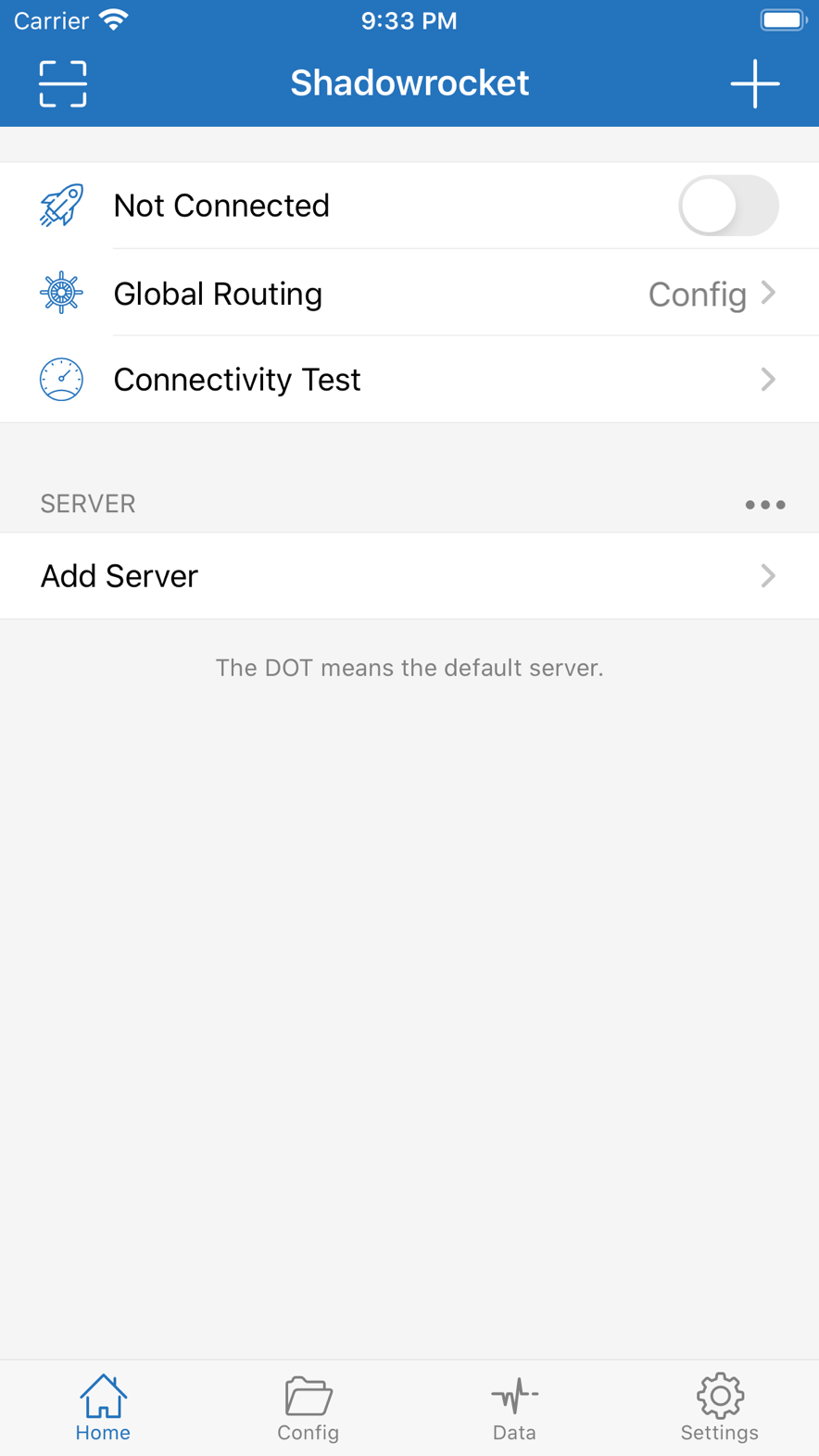
Shadowrocket Home: not connected, ready to add a server

Official App Store screenshot · Open the interface demo

Get clear what it is first

The client and the node are not the same thing. Installing the app only gives you the software. A subscription or node has to be prepared separately.

On the App Store the app is named Shadowrocket, for iPhone and iPad. It reads common proxy protocols, decides by rule whether a request goes proxy, direct, or dropped, and hands system traffic to the node you selected. The first time you connect, iOS asks to add a VPN configuration. That is a system permission, not a second VPN app to install.

It does not host servers, sell a “plan,” or grow a node after you buy the app. Subscription URLs, typed nodes, and routing rules come from you or a source you trust. This page only covers how to install, configure, and fix the software. It does not hand out nodes or installers.

Routing rules

Decide the path by domain, IP, or process. Local sites and Apple services often stay DIRECT; destinations that need the proxy use PROXY; ads and trackers can be dropped. Global mode sends all traffic on a detour. Use it to troubleshoot, not as the default.

Subscription updates

A subscription is a node-list URL that can change. Paste it once, then tap Update to sync adds and deletes. A single node is one row on that list: host, port, protocol, and password. Do not reverse the two.

Speed test and status

Home shows latency, whether you are connected, and how much traffic you used. Pick a node for stability first, then the number. A low ping that drops all day is worse than a slower line that stays up.

Several ways to add

Most people paste a subscription URL. You can also type by protocol, or import a shared config from a QR code. If Type, port, or cipher is wrong when you type, it looks like “connected but nothing opens.”

Places and backups

Home, work, and campus can use different rules and nodes. Export a backup before you switch phones. Reinstall the app without an export and neither the subscription nor the rules will come back on their own.

Logs for the symptom

When it will not connect, see whether the node timed out, DNS failed, or a rule sent the target to DIRECT. Do not reinstall first. Logs and a short spell of global can split the problem.

Split these three words first

The rest of the steps depend on this distinction. Treating a subscription as a single node is the most common setup mistake.

Nodes

One line: address, port, protocol, password or UUID. What you select on Home is a node. It can expire, fill up, or jitter. Swapping one is the most common fix.

Subscription

A link to a node list. After update, the nodes on the list can change. The subscription itself is not “one server” to fill in. The remark is for you. The URL is for the app.

Rules

Decide where traffic goes. Three common policies: PROXY uses the node, DIRECT skips it, REJECT drops it. Bad rules look like “connected, but the sites that should proxy do not — or the ones that should not, do.”

Compare
What it controls Where it comes from What a failure looks like
Nodes How this hop leaves the device Subscription update, or typed by hand Timeout, handshake fail, connected but nothing opens
Subscription Where the node list refreshes from A URL you kept yourself Update fails, the list is empty, nodes vanish overnight
Rules What proxies, what stays direct A remote file, or a local edit Local sites get slow, proxy destinations stay direct, ads slip through

Buying and downloading

Get it from the official App Store. Full notes are on the download page. This site does not provide IPA files or sell Apple IDs.

Which case are you in

  1. Your App Store can find it

    Open this page’s store link, or search Shadowrocket. Trust the price in the store — often about US$2.99. After install you can switch Apple ID if you need to. The app stays on the Home Screen.

    Switching accounts will not uninstall an app that is already there. Nodes and subscriptions do not follow the Apple ID either — they live in Shadowrocket’s own config.

  2. Search is empty

    The catalog follows your Apple ID country. The app is listed in many stores and is usually missing from mainland China. Do not buy a shared account in a forum or group. You can lose the money and the device.

    Once the sign-up country is set, that is the shelf you get. If search is empty, see which country you are signed into first. Do not assume the app was taken down.

  3. You bought it before, then switched phones or deleted it

    Sign in with the Apple ID that paid, open Purchased, find Shadowrocket, and tap the cloud icon. You do not pay again. What you get is an empty shell. Nodes come back from a backup you already have or from a subscription.

    If it is missing from Purchased, you are probably on the wrong account, or you installed it through Family Sharing from someone else’s purchase. Look again on the family organizer’s account.

From first launch to connected

Each step is written as ready / do this / what done looks like. The full version with official screenshots is on the guide page.

01

Install the app

This step only answers “is Shadowrocket on the phone?” It has nothing to do with nodes.

Do this

  1. Confirm the account at the top right of the App Store is a region that can find it.
  2. Search Shadowrocket. Trust the developer and icon on the store page. Do not install a look-alike.
  3. Buy and wait for install to finish. The first launch can stay disconnected — open Settings and look around.
  4. If you want, switch the App Store back to your everyday account.

What done looks like

There is an icon on the Home Screen. Home inside the app is empty, or only has a default policy. That is normal. Empty does not mean broken — it means no subscription is loaded yet.

If it cannot reach the store, that is an account or network problem. Do not download a package from a third-party site.

02

Add a subscription or a node

Without a working node, turning the connection on has no effect.

When you have a subscription

  1. Open Shadowrocket and tap plus at the top right.
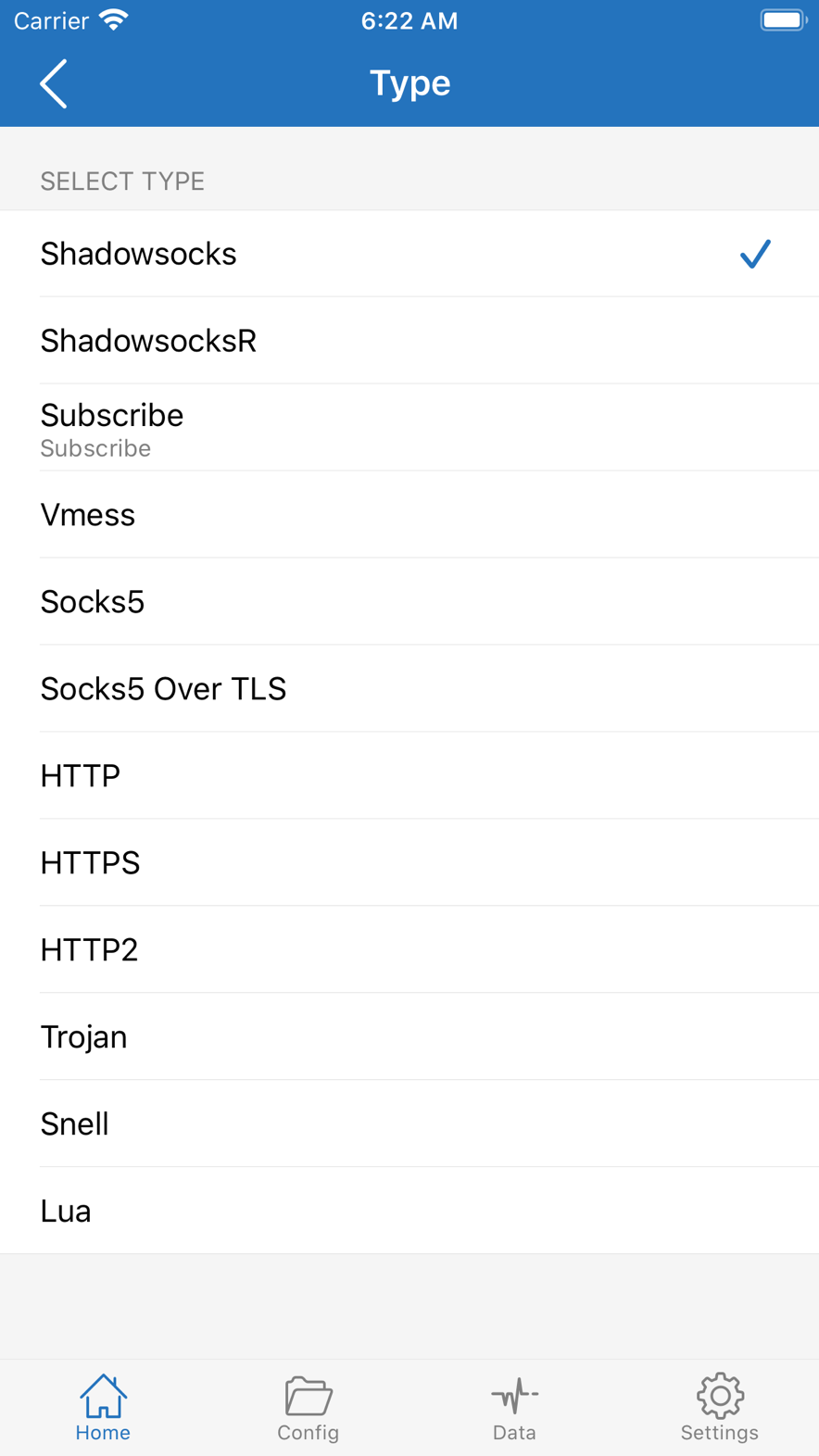
  2. Set Type to Subscribe.
  3. Paste the full URL, including https and the query. Do not strip it.
  4. Set the remark to a name you will recognize, such as “Daily.”
  5. Save, then tap Update on the subscription row. Wait for success.

When you only have a single node

  1. In the plus menu, pick the protocol you were given. Do not guess.
  2. Copy host, port, password or UUID, cipher, and transport exactly.
  3. After you save, you should see this row on Home.

What done looks like

Home or the node list shows a group of names, or one name. Open it and you can run a latency test. Update usually fails because the URL expired, a character was dropped, or this network cannot reach the subscription address.

If a subscription updates and you still cannot connect, keep going: set rules and swap nodes. Do not keep reinstalling the app.

03

Set routing rules

This step answers “what should detour, what should stay local.” Rules and the subscription are two different things.

Do this

  1. In Config, find remote files or the rule-related items.
  2. Import a routing set you trust. Do not stack many sets that fight each other.
  3. Confirm the default policy. Daily use is often “matches follow the rule, unmatched go PROXY” or the reverse — follow the notes that came with the file you imported.
  4. Remember three words first: PROXY, DIRECT, REJECT.
  5. Keep Apple services and daily local sites on DIRECT. You use less battery and interrupt logins and payments less often.

What done looks like

The config page should show when the remote rules last updated. A local site in the browser should feel close to direct. A destination that should use the node should go through it. If both are slow, suspect the node first, then rules that sent local domains to PROXY.

While troubleshooting you can turn global on for a moment. If global works and rule mode fails, it is a rule problem. The reverse is a node problem.

04

Connect and confirm

This is the step that actually attaches to the system VPN. Permission is asked once.

Do this

  1. Back on Home, select a node you just tested with a normal latency.
  2. Turn the connect switch on.
  3. The first time, iOS asks to add a VPN configuration. Use the passcode or Face ID and tap Allow.
  4. After the status says connected, open a site that should use the proxy first.
  5. Then open a local site and confirm it was not all sent through the proxy by mistake.

What done looks like

The status bar shows VPN, and Shadowrocket says connected. Proxy destinations open. Local sites do not suddenly crawl. If the proxy path fails, swap the node. If only some sites fail, check the rules.

If you denied VPN permission, flipping the switch will never really connect. Add the permission under VPN & Device Management in Settings. You do not need to delete and reinstall.
Learn the layout on the official screens

The plus button on Home, Subscribe in Type, Config, and Data are all tappable on the demo page.

Open the interface demo or the illustrated guide

Type page, including Subscribe

Connected, but it still does not work

Match the symptom. Do not reinstall at the first failure. Reinstalling will not revive an expired node.

The switch is on, but pages will not load

Swap a node first. If that fails, turn global on for a moment: if global works and rules fail, update or replace the rules; if global also fails, it is the node, local time, or DNS. Set system time to automatic, then try again.

Only some sites fail

Rules are doing their job. It is not always a fault. See whether that domain was sent to PROXY or DIRECT. If it should proxy and went direct — or the reverse — change the rule. Do not keep tapping connect.

Subscription update failed

Check that the URL is complete and you did not drop the query after the question mark. Then check whether this network can reach that address. Some lists only update after you connect an old node. That is a limit on the source, not a broken Shadowrocket.

It drains battery and runs hot

Turn off global if you do not need it, and return to rule-based routing. Pick a geographically closer node with less jitter. Frequent reconnects also drain battery. Choose stable first, then fast.

Campus or hotel Wi-Fi will not sign in

Disconnect Shadowrocket, finish the captive portal, then connect. Some networks block VPN configurations. Then you can only switch networks, or send only the apps you need through rules. Do not force global.

You swapped nodes and still see the old result

The browser has its own cache and DNS cache. After you swap nodes, toggle Shadowrocket off and on, or try a private window, so an old page does not fool you.

New phone and backup

You can buy or download the app again. Losing the subscription URL is the painful part. Make exporting a habit.

Export

In Config, find backup or export. Put the file in the Files app, AirDrop it, or a drive you already use. Do not post the subscription in the clear in a group.

Import

Install Shadowrocket on the new phone first. Open the export with “Open in Shadowrocket,” or import inside the app. After import, update the subscription once and confirm the nodes are there.

Reinstalling is not enough

Deleting the app clears local config. iCloud may not bring the full subscription back. On the move-day list, keep at least the backup file or the subscription URL.

People still ask

Full categories are on the FAQ page. This is only the set that blocks people most often.

Why can't I find it in the App Store?

Search follows the Apple ID country. If the list is empty, check the account country first. Do not change keywords first, and do not download an unknown package.

Do I have to pay? Is there a free installer?

It is a paid app in the store. This page does not provide or mirror cracked packages or third-party IPA files. Those sources often ship a configuration profile that costs more than the three dollars you saved.

I bought it. Why am I still offline?

The client will not invent a line. With no working node — or a dead one — you have an empty shell. Confirm the subscription updated, then speed-test and swap nodes. Touch rules last.

Does it work on Android?

Shadowrocket is an iOS / iPadOS app. On Android you need a client for that platform. You cannot use this IPA there.

Can I run it together with the built-in VPN?

iOS usually runs only one VPN configuration at a time. When Shadowrocket is on, other VPNs stop. Do not stack two hoping for more speed. They will fight.

Can Family Sharing cover family members?

If the purchase record supports sharing, family members can download the same app from Purchased. Their nodes and subscriptions are still theirs. They do not travel with the app.

Where do I get rules?

Use a source you trust, and read the date. This page does not ship or recommend a specific rule repo. After import, check it yourself: local sites stay DIRECT; destinations that need the proxy go PROXY.

Should I leave it on all the time?

That depends on you. Rule-based routing uses less battery than global. When you do not need it, turn the connection off. You do not have to delete the app.

It says it cannot add a VPN configuration. What now?

In system Settings, see whether Screen Time or VPN & Device Management is blocking configurations. Work MDM or parental controls sometimes stop it. Lift the limit and flip the switch again. You do not need to reinstall.

It stopped working after an iOS update?

Open the App Store and see whether Shadowrocket has an update. Then check that VPN permission is still there. After a major system update you may need to allow the configuration once more.